Importing Connections
Zentro can import connection profiles from other database tools so you don't need to re-enter credentials you've already configured elsewhere.
Importing from DBeaver
Unlike a typical "export then import" flow, Zentro auto-detects DBeaver's own configuration on your machine — there's no need to export anything from DBeaver first.
Steps
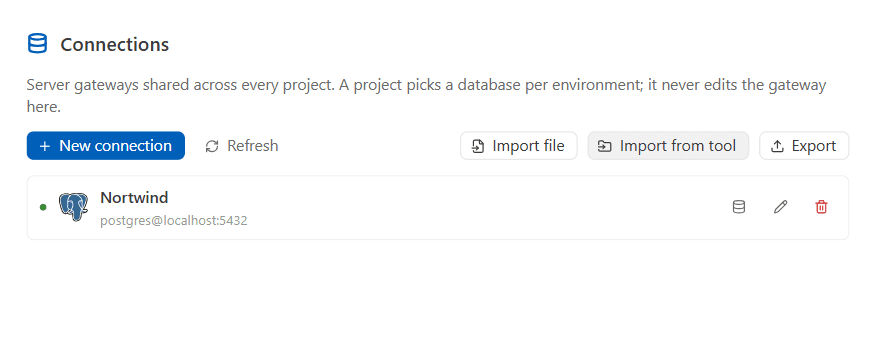
- In the project create/edit panel, choose Import from tool.
- Select DBeaver from the list of detected tools — Zentro scans the OS-standard locations for DBeaver's workspace file automatically.
- Review the list of detected connections (name, driver, host).
- Select which connections to import.
- Confirm the import.

What Gets Imported
| Field | Imported |
|---|---|
| Connection name | ✅ |
| Driver type | ✅ |
| Host & port | ✅ |
| Database name | ✅ |
| Username | ❌ Not currently imported — enter it in Zentro after import |
| Password | ❌ Never read from DBeaver's config — enter it in Zentro after import |
Unsupported/unrecognized drivers in your DBeaver workspace are skipped automatically rather than causing the import to fail.