Data Grid & Table View
The Data Grid appears whenever you run a SELECT query or open a table from Schema Explorer.
Features
Sorting
Click a column header to sort. Clicking a header is also how you set the grid's ORDER filter — sorting re-runs the query with ORDER BY applied server-side, not a client-side re-sort of loaded rows.
Column Resizing
Drag column borders to resize. Double-click a border to auto-fit the column to its content.
Quick Filter
A quick-filter box above the grid narrows the already-loaded rows client-side as you type — it doesn't touch the database. For filtering the full result set (including rows not yet loaded), use the WHERE filter instead, which re-runs the query.
Copying Data
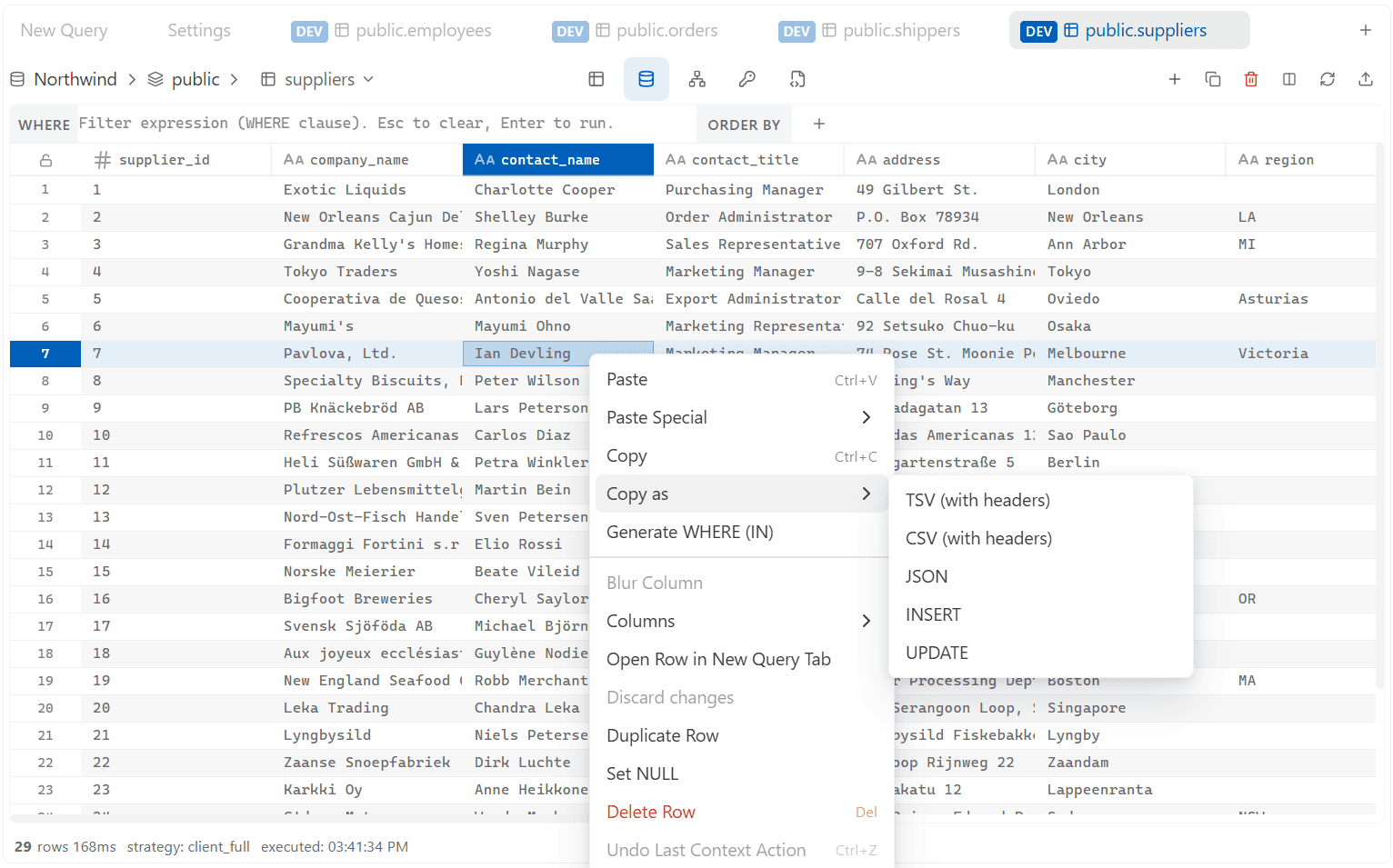
Right-click a selection to copy as:
- TSV (with headers) — pastes cleanly into spreadsheets
- CSV (with headers)
- JSON
- INSERT — ready-to-run
INSERTstatement(s) for the selected rows - UPDATE — ready-to-run
UPDATEstatement(s) for the selected rows
You can also generate a WHERE ... IN (...) clause from selected cell values, and paste TSV data back in (Fill Selected Cells / Paste From Top-Left) when the result is editable.
Loading More Rows
Results stream in from the database in chunks (500 rows by default, configurable in Settings) rather than being capped at a fixed total — the grid loads more as you scroll, and the toolbar shows how many rows have loaded so far.
Table View
Opening a table from Schema Explorer runs SELECT * FROM table_name (streamed in the same chunked fashion as any other query) and shows it in the same Data Grid — filter, sort, and copy work identically.
Table View supports in-grid row editing directly — click a cell to edit and save changes without writing SQL. This works whenever the result has a detectable primary key; it isn't gated by plan. Results without a primary key (or from multi-table joins) are read-only — use UPDATE/INSERT statements in the SQL editor instead.
Exporting
The Export button in the grid toolbar exports the full result set to CSV, JSON, or SQL — available on every plan. Large exports run in the background and notify you when complete.

NULL Values
NULL values are shown as a distinct [NULL] marker rather than an empty string, so they're unambiguous.