App Toolbar
Zentro has two toolbars: a persistent one across the top of the window, and a contextual one attached to each query editor tab.
App Toolbar (top of window)
Always visible, regardless of which panel or tab you're in.
Left toolbar:

- View Mode toggle — flips the whole app into read-only mode; see Production Safety.
- Reload Connection — reconnects the active database connection.
- Lock App — locks Zentro immediately (also
Ctrl+L). Pro feature — only appears once App Lock is enabled and configured in Settings → Security. - Git branch switcher — switch or create a branch for the project's script git tracking (visible when the project has git tracking enabled).
Center toolbar:

-
Project Hub — click the project name, or press
Ctrl+P, to switch between projects. -
Environment indicator — shows the active environment with a color tint:
Color Environment Blue Development Yellow/Amber Staging Red Production Click it to switch environments within the current project (or use
Alt+Shift+D/G/Pfor Development/Staging/Production).
Right toolbar:

- Feedback — send feedback or report an issue, with app version/build/OS attached automatically.
- Settings — opens the Settings tab.
- Panel toggles — Toggle Sidebar (
Ctrl+B), Toggle Result Panel (Ctrl+J), Toggle Right Sidebar (Ctrl+Alt+B).
Editor Toolbar (per query tab)
A second toolbar sits above each SQL editor tab, scoped to that tab:
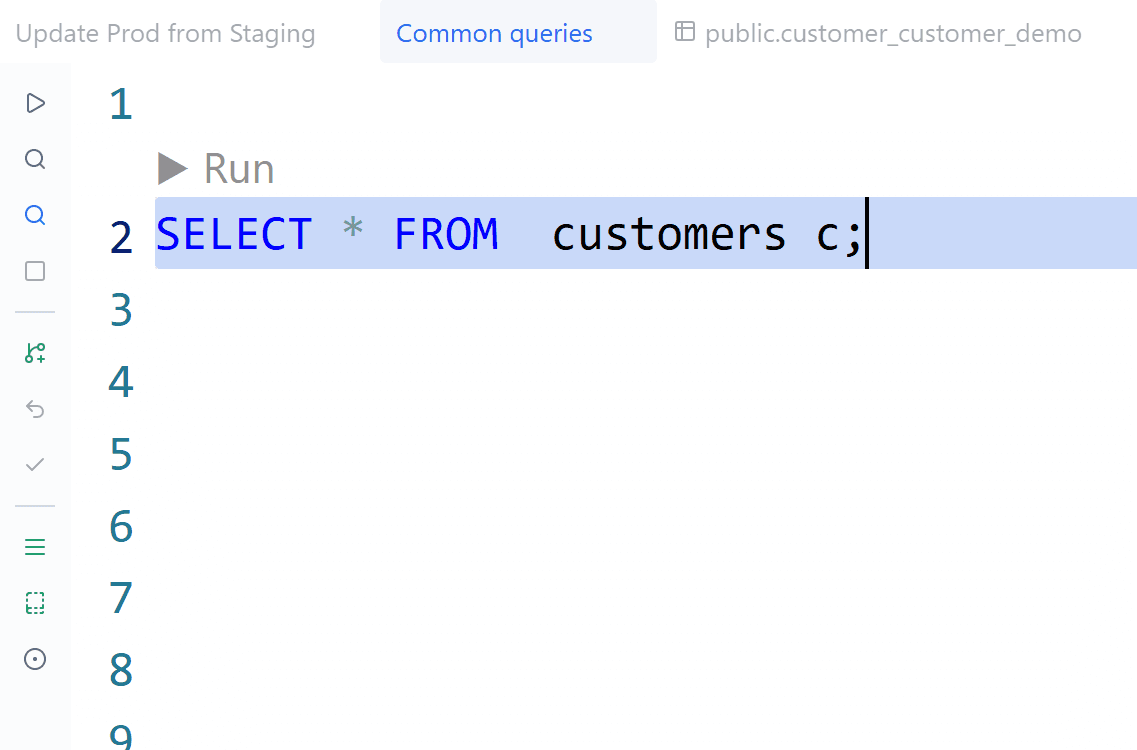
| Button | Shortcut | Action |
|---|---|---|
| Run | Ctrl+Enter | Run the current selection/statement |
| Cancel | — | Cancel a running query |
| Explain | Ctrl+Shift+E | Run EXPLAIN |
| Explain Analyze | Ctrl+Alt+E | Run EXPLAIN ANALYZE |
| Begin Transaction | Ctrl+Shift+7 | Open an explicit transaction |
| Commit Transaction | Ctrl+Shift+8 | Commit the open transaction |
| Rollback Transaction | Ctrl+Shift+9 | Roll back the open transaction |
| Format Query | Ctrl+Shift+F | Format the SQL in this tab |
| Templates | — | Insert a query template |
| Focus Mode | Ctrl+Alt+Z | See Focus Mode |