Connecting to a Database
Zentro supports PostgreSQL, MySQL, MariaDB, Microsoft SQL Server, and SQLite.
Connections live in one shared pool. Each project environment binds to a pooled connection plus the database it should use, so a connection you enter once can back environments across different projects without re-typing it. Exporting or importing connections uses a { version, connections: [] } bundle, and passwords are always stripped from the file.
Supported Databases
| Database | Notes |
|---|---|
| PostgreSQL | Full feature support |
| MySQL | Full feature support |
| MariaDB | Uses the MySQL driver |
| Microsoft SQL Server | SQL Server Authentication and Windows Authentication |
| SQLite | File-based; use a local file path as host |
Connection Fields
| Field | Required | Notes |
|---|---|---|
| Connection string (URI) | No | Paste a URI to auto-fill the fields below, where available |
| Profile name | Yes | Locked once saved |
| Host | Depends on driver | Not shown for SQLite |
| Port | Depends on driver | Not shown for SQLite |
| Database name | Yes | For SQLite, this is the file path |
| Username / Password | Depends on driver | Not shown for SQLite |
| SSL mode | PostgreSQL only | Disable / Require / Verify CA / Verify Full (default: Disable). The dropdown appears for MySQL and SQL Server too, but isn't wired up yet on those drivers — selecting a mode has no effect. |
| Save password | No | On by default |
| Encrypt password | No | On by default (requires Save password) |
Default Ports
Default port: 5432
Common connection string:
postgresql://username:password@localhost:5432/mydbCredential Storage
Passwords are never stored in plain text. Zentro uses your operating system's native keychain on all three platforms:
- Windows: Windows Credential Manager
- macOS: Keychain
- Linux: Secret Service API
If you reset or reinstall Zentro, your connections will need to be re-authenticated since credentials live in the OS keychain, not in Zentro's config files.
Testing a Connection
After filling in the connection details, click Test before saving. Zentro will attempt to open a real connection and report success or the specific error (e.g. authentication failure, unreachable host, SSL mismatch).
Managing Connections in Settings
Open Settings → Connections to manage the shared pool. This is the single place to create, edit, test, and delete connections, and to import or export them. Project environments only pick from this pool — they never edit the connection itself.
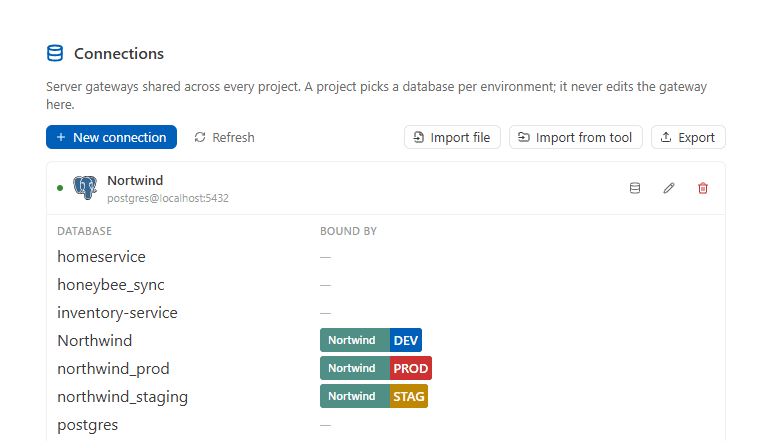
Toolbar actions
- New connection — opens the create form
- Refresh — reloads connections, databases, and project bindings in one go
- Import file — imports connections from a Zentro bundle JSON
- Import from tool — imports saved connections from a supported external tool (for example, DBeaver)
- Export — exports the selected connections to a Zentro bundle JSON
Connection list
Each connection row shows:
- A status dot: green when reachable, pulsing amber while checking, red when unreachable, grey when not checked yet
- The provider icon, the connection name, and its endpoint (
username@host:port) - A database button (host-based drivers only) that expands the database list
- Edit and Delete actions
Database bindings
Expanding a connection shows every database the server exposes in the Database column, plus a Bound by column listing which project environments bind to each database. A database a project references but that no longer exists on the server is shown in red with a not on server label. Each binding appears as a project-coloured pill with an environment badge.
You can also create a new database inline from the new_database_name input and Create button.
Editing a connection
Editing a connection updates every project that references it. Zentro shows a warning banner — Changing credentials here updates every project using this connection — before you save.
Deleting a connection
Deleting a connection first tells you how many project environments across how many projects still use it. If any do, those environments will need rebinding before they can connect again.
Import and export
Import and export always strip passwords — a connection bundle never contains secrets.
- Import file reads a Zentro
{ version, connections: [] }bundle. The older single-connection package can still be imported. - Import from tool lets you pick a tool (when more than one is installed), select the saved connections to pull in, and confirm. Passwords are not imported.
- Export lets you select which connections to write out; the backend always strips secrets.
Troubleshooting
Connection timed out : Check that the host is reachable and the port is not blocked by a firewall.
Authentication failed
: Verify the username and password. For PostgreSQL, ensure the user has CONNECT privilege on the database.
SSL certificate error : Set SSL mode to Disable for local development, or Verify CA / Verify Full with the right certificate for production connections.
SQL Server login failed : Ensure SQL Server is configured to allow SQL Server Authentication (not Windows-only).