Production Safety
Zentro treats production safety as a first-class concern across all tiers. Free includes awareness features that build safe habits. Pro raises these to active enforcement that requires deliberate action before a destructive query can run.
Environment Labeling
Every connection is tagged with an environment: Development, Staging, or Production. This tag drives all safety behavior in the app. Set it when creating or editing a connection.
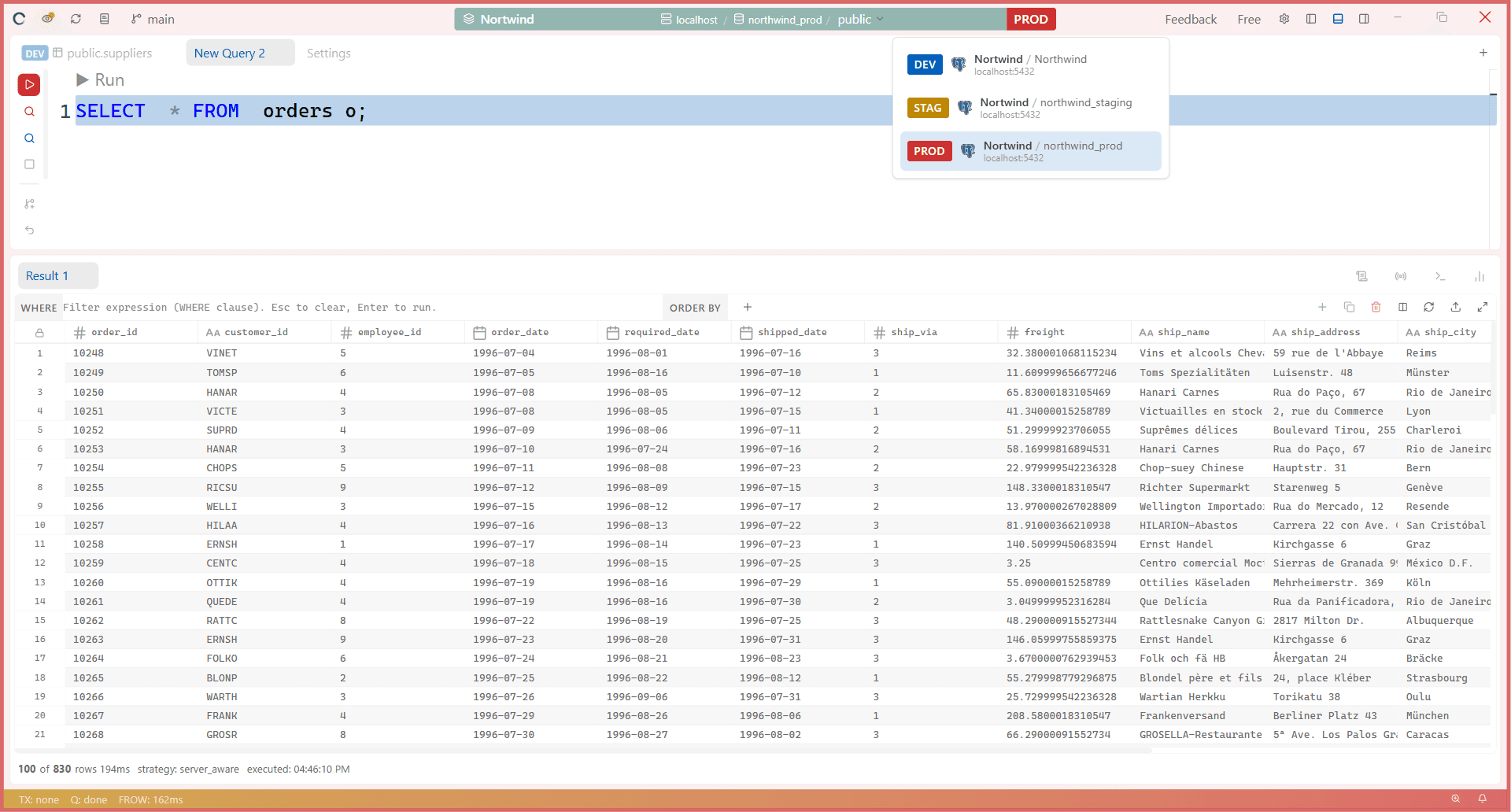
Production Overlay
When connected to a Production environment, Zentro shows a persistent visual indicator (a red border around the app) — available on every plan, regardless of which panel you're in.
Query Risk Classification
Before any statement is sent to the database, Zentro classifies its risk:

| Risk | Example |
|---|---|
| Safe | SELECT ... |
| Warning | INSERT INTO ... |
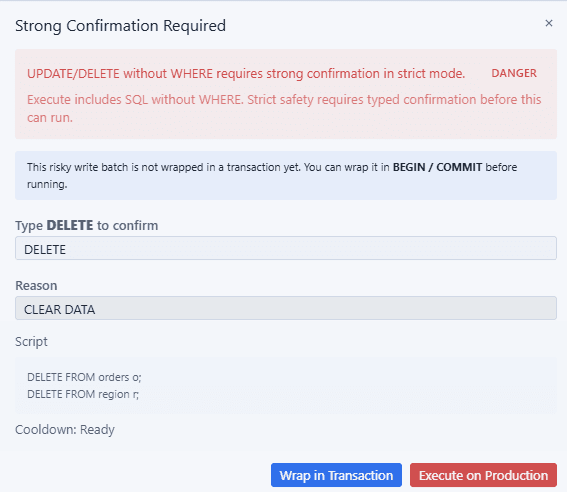
| Dangerous | DELETE without WHERE, DROP TABLE, TRUNCATE |
| Plan | Behavior |
|---|---|
| Free | Risk level shown alongside the query; warning displayed |
| Pro | Dangerous queries on Production are blocked until the user takes deliberate action |

Affected Rows Preview
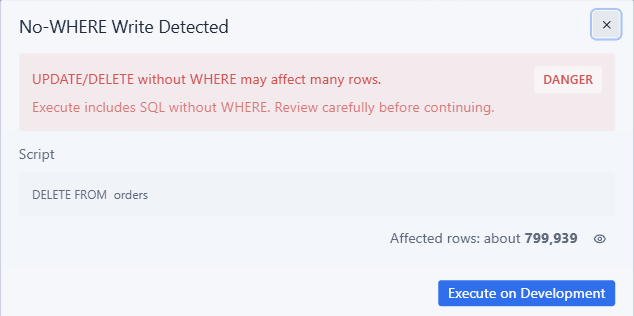
Before executing a UPDATE, DELETE, or INSERT, Zentro shows how many rows will be affected.
| Plan | Behavior |
|---|---|
| Free | Row count shown as informational |
| Pro | Confirmation is required for destructive statements on Production (see Pro: Hard Enforcement below) — driven by the query's risk classification, not the affected row count |

Sandbox Preview
Runs a mutating query inside an implicit transaction. You inspect the result, then choose to commit or rollback without having permanently changed any data.
| Plan | Behavior |
|---|---|
| Free | Available as opt-in (wrap in transaction manually) |
| Pro | Auto-triggered for dangerous queries on a Production connection |

Write Safety Level
Available on every plan, in Settings → Data & Query → Write Safety Level. This sets how eagerly the app prompts before a write — per environment (switch environments to set a different level for each one):
| Level | Behavior |
|---|---|
| Strict | Blocks UPDATE/DELETE without a WHERE clause outright. Other writes still require confirmation. |
| Balanced | Prompts for every write operation. Destructive writes always require explicit confirmation. |
| Relaxed | Non-destructive writes (e.g. INSERT/CREATE) run without a prompt. Destructive writes still prompt. |
Production is locked to Strict — the dropdown is disabled there and Zentro shows "Production is always Strict — the safety floor cannot be lowered." Other environments can be set to any level.
A related toggle, Risk Highlight in Editor, tints destructive and write statements directly in the SQL editor — also free, in the same settings section.
Audit Log
Every query executed is written to a local audit log — available on every plan. Open it with Ctrl+Shift+L, or the Audit tab in the bottom panel.
| Field | Description |
|---|---|
| Timestamp | When the query ran |
| SQL | Full statement text |
| Environment / connection / database | Where it ran |
| Status | Success, or the error message if it failed |
| Duration | Execution time |
| Reason | User-entered reason (if the reason field was required) |
→ See Saved Scripts & History for filtering, exporting, and clearing the log.
Pro: Hard Enforcement
These features are Pro-only and apply on Production connections, on top of the free baseline (write confirmation prompts themselves already happen on Free — Pro adds the controls below).
Production Write Unlock
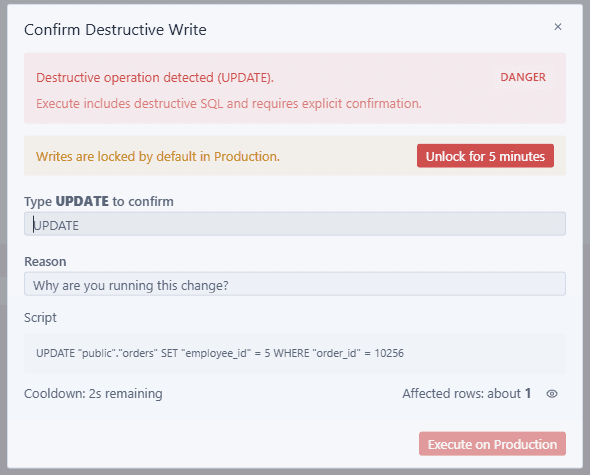
Before any write statement (not just destructive ones) can run on Production, you must click Unlock first. Once unlocked, writes are allowed for 5 minutes before the lock re-engages automatically — an extra deliberate step on top of the per-statement dialog below.
Write Confirmation Dialog
Any statement that modifies data triggers a confirmation dialog before execution. The dialog shows:
- Full statement to be executed
- Estimated affected row count (where the driver can determine it)
- A countdown timer before Execute becomes available
This cannot be bypassed on Production.
Type-to-Confirm
For high-risk operations (DELETE without WHERE, TRUNCATE, DROP), Zentro requires typing a confirmation phrase that matches the operation. The Execute button stays disabled until the phrase matches exactly.
Cooldown Timer
Before a destructive operation on Production can be confirmed, a 3-second cooldown counts down in the confirmation dialog — Execute stays disabled until it reaches zero, forcing a brief pause instead of a reflexive click.
Reason Field
On Pro, a destructive statement on Production requires typing a plain-text reason before it can run — this isn't a toggle you turn on; it kicks in automatically whenever you're on Production, the statement is destructive, and your license includes it. The reason is stored in the audit log alongside the query.
→ For schema-level history and rollback, see Source Control.
→ For PII detection and app lock, see Security & App Lock.