Row Detail
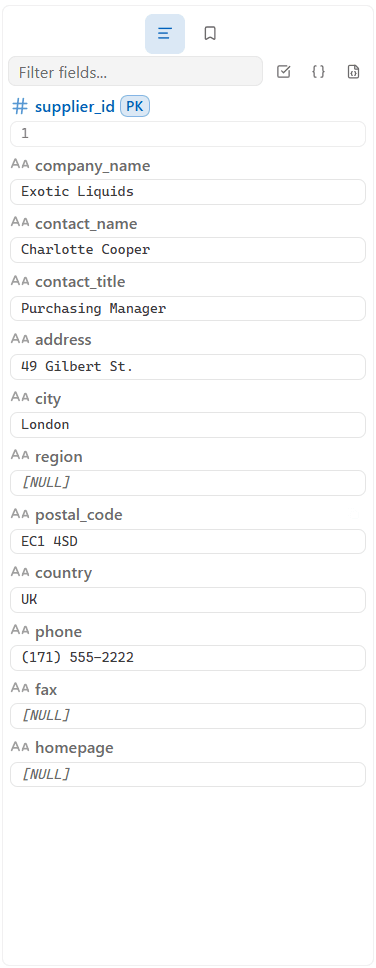
The Row Detail panel lives in the right sidebar. It shows every column of the currently selected row, one field per line — handy for wide tables or long text/JSON values that don't fit in a grid cell.
Opening Row Detail
- Select a row in the result grid while the right sidebar is open (
Ctrl+Alt+B) — Row Detail updates live as you select different rows. - Press
TabTab(twice, quickly) with a cell selected — jumps straight to Row Detail and opens the right sidebar for you if it isn't already.
What's Shown
Each field shows its column name (with a data-type icon and hint tooltip), a PK badge on primary key columns, and its value below.
NULLvalues render as[NULL]- Fields you've edited but not yet saved are highlighted until the save round-trips
Editing from Row Detail
Non-primary-key fields are editable in place — as long as the underlying table has a primary key (needed to build the UPDATE). Click a field's value to turn it into a text box:
| Key | Action |
|---|---|
Enter | Save the field |
Shift+Enter | Insert a newline |
Esc | Cancel the edit |
Primary key fields, and fields on results without a detectable primary key, are read-only.
Copying
-
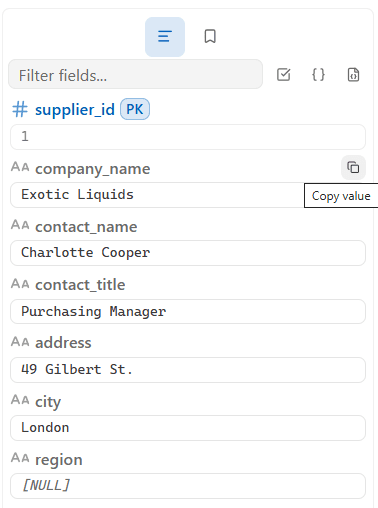
Hover a field for a Copy button — copies the raw value.
-
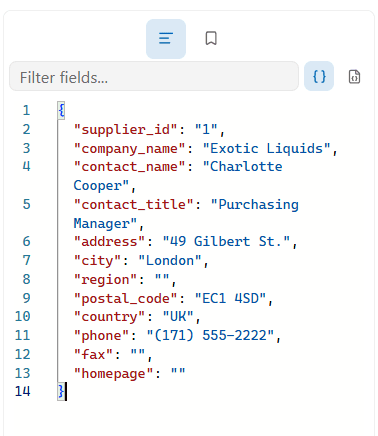
The JSON icon (Braces) in the toolbar copies the whole row as pretty-printed JSON — or click the checkbox icon first to enter selection mode, pick specific fields, and copy just those (with an invert selection button to flip the picks).
-
Toggle the same Braces icon a second way — via the header button — to switch the whole panel into a read-only JSON view of the row instead of the field-by-field form.
Filtering Fields
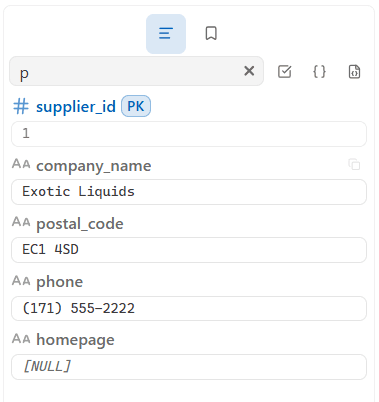
A Filter fields... box at the top of the panel narrows the field list by column name — useful on very wide tables.