Schema Explorer
The Schema Explorer gives you a live view of your database structure. It's the Explorer tab in the left sidebar.
What You Can Browse
Objects are grouped into categories (Tables, Views, Materialized Views, Indexes, Functions/Stored Procedures, and more, depending on the driver), each showing a count of how many objects it contains. Tables are further grouped by schema.
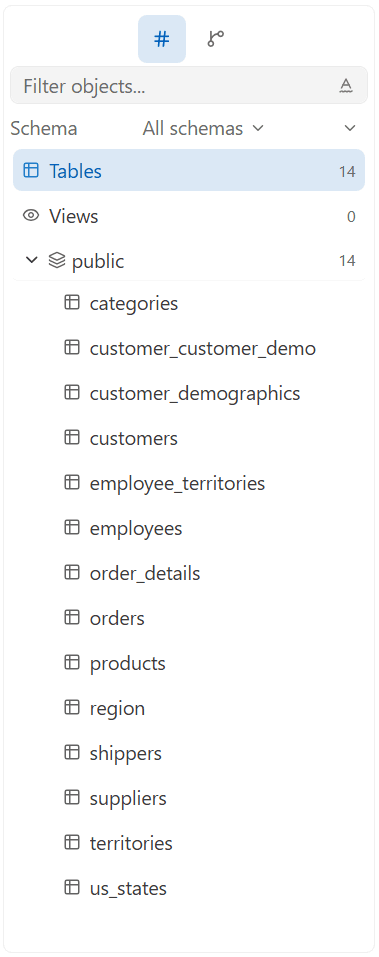
Navigating the Tree
Click a schema to expand its tables/views. Click a table, view, or materialized view to open it — this opens a tab with Data, Columns, Keys, DDL, and ERD sub-tabs for that object (see Data Grid & Table View).
Right-clicking a table or view gives you:
- Drop / Drop (Cascade) where supported
- Refresh... (
F5) - Import/Export Data... → Export... for the current object (Import is not available yet)
- Truncate submenu (Truncate / Truncate Cascade / Truncate Restart Identity), where the driver supports it
- Restore... / Backup... — placeholders for a future release
To view the CREATE TABLE statement, open the table and switch to its DDL tab rather than looking for it in the context menu.
Filtering the Tree
A Filter objects... box above the tree filters by name as you type — it's always visible, not a separate search dialog.
Schema Selector
A schema dropdown at the top of the panel (defaulting to All schemas) lets you scope the tree to one schema. Switching the active database or connection entirely is done from the project/connection switcher (Ctrl+P), not from this panel.
ERD
There's no standalone ERD button on the explorer panel — open any table and switch to its ERD tab to see its relationships.
→ See ERD Visualization