SQL Editor
The SQL editor is the core of Zentro, built on Monaco (the editor behind VS Code). Type a query, run it, see results — all without leaving the keyboard.
Overview
- Multi-tab editing — open multiple queries per project
- Syntax highlighting and adaptive autocomplete for PostgreSQL, MySQL, SQL Server, and SQLite
- A run button (via CodeLens) above each detected statement, with the active statement highlighted as you move the cursor
- Inline error reporting from the database engine
- Results rendered in the Data Grid, sortable and filterable
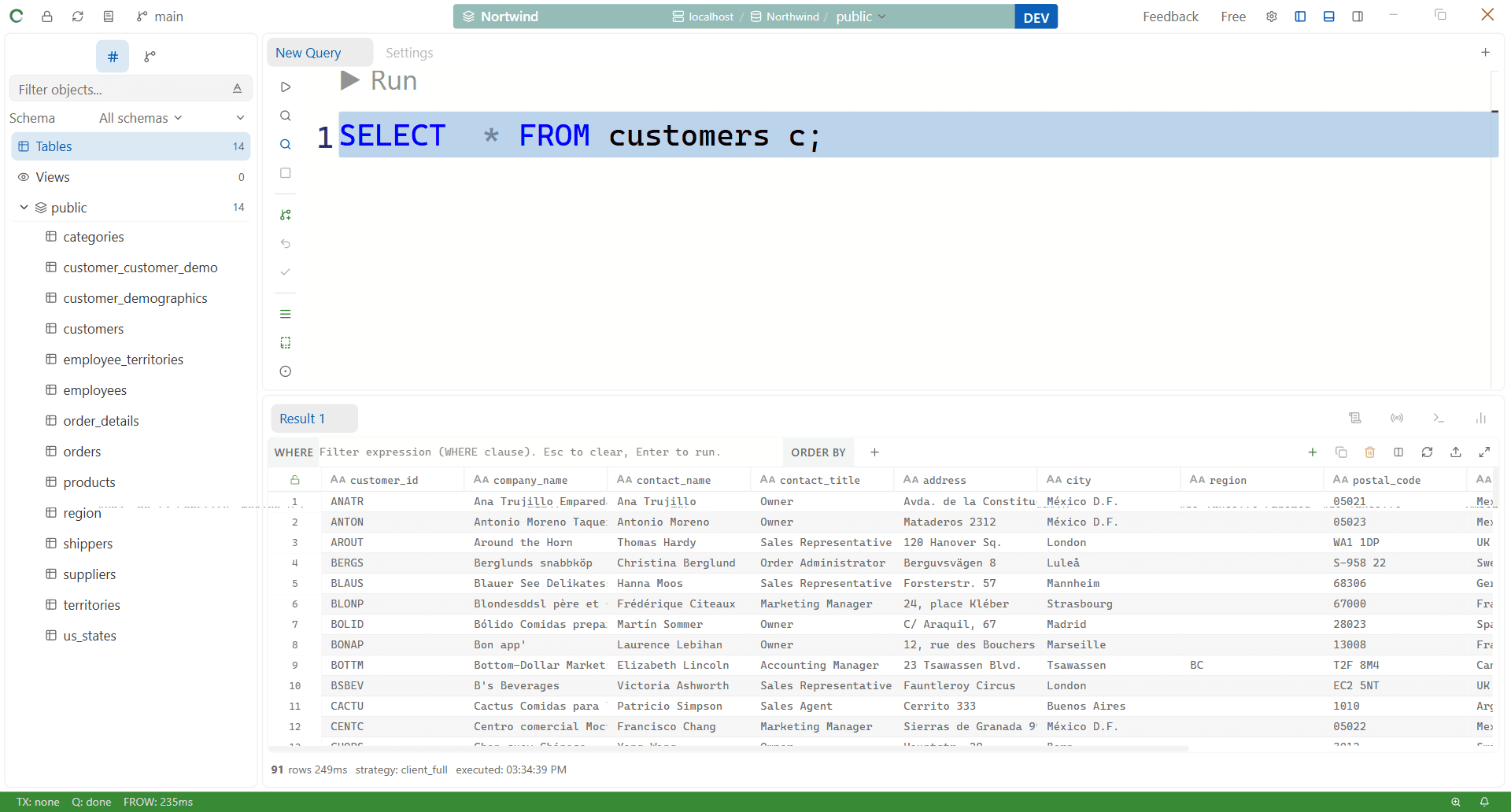
Running Queries
| Action | Shortcut |
|---|---|
| Run | Ctrl+Enter |
| Explain Query | Ctrl+Shift+E |
| Explain Analyze | Ctrl+Alt+E |
| Format Query | Ctrl+Shift+F |
| New editor tab | Ctrl+T |
| Close tab | Ctrl+W |
Ctrl+Enter runs your current text selection if you have one; otherwise it runs the contiguous block of non-blank lines around your cursor — so you can stack several statements in one tab, separated by blank lines, and run each independently by just placing your cursor in it (or clicking its CodeLens Run link above it).
If the block you run contains multiple ;-separated statements, Zentro executes them in order and gives each its own result tab, labeled by what it did (e.g. "SELECT users", "UPDATE orders").
The editor regains focus automatically after a run, whether triggered by the shortcut, the run button, or a CodeLens link.
Auto-complete
The editor's adaptive completion engine provides context-aware, schema-aware suggestions:
- Keywords —
SELECT,FROM,WHERE,JOIN, etc., with tables/views prioritized over generic keywords in ranking - Table and view names — pulled from the active connection's schema
- Column names — available after you type a table name or alias
- Functions — database-specific built-in functions
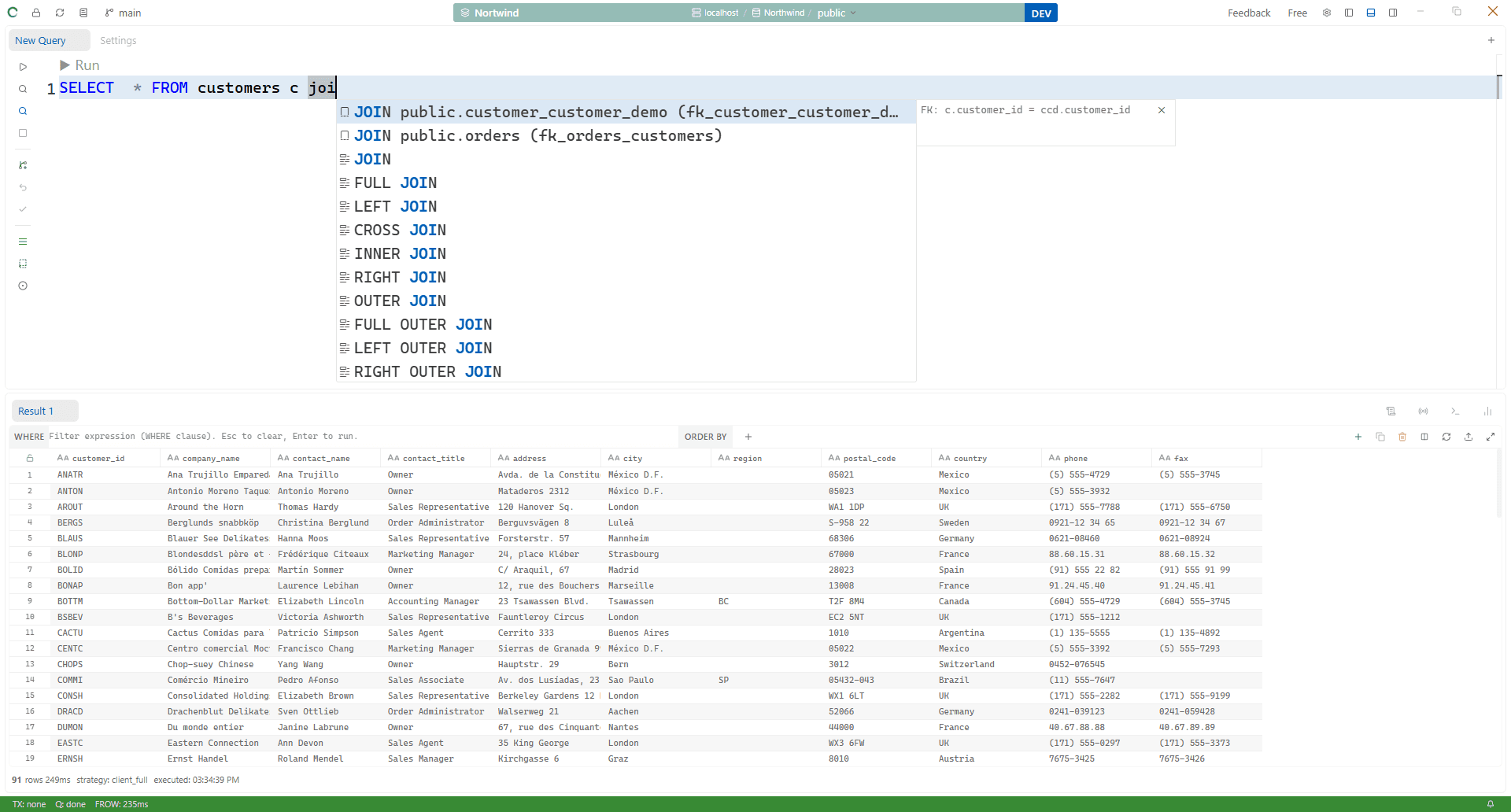
Trigger it manually with Ctrl+Space.
Schema metadata is fetched when you connect and refreshed automatically when you switch environments. To force a refresh, right-click the schema tree and choose Refresh.
Saved Scripts
Query tabs autosave as you type (2 seconds after you stop, and every 15 seconds while there are unsaved changes) — you rarely need to save manually. Saved scripts appear in the Scripts panel (left sidebar).
→ See Saved Scripts & History
Result Panel
After a query runs, results appear in the bottom panel:
- Data Grid — tabular view, sortable, filterable, editable for simple single-table results
- Affected rows — shown for
INSERT,UPDATE,DELETE - Execution time — displayed per query
- Errors — inline, with the database engine's message
→ See Data Grid & Table View